- My controller was working before but is not being recognized any more.
Follow the Autosense process again. There are times the interface can "forget" which controller you had connected.
- The interface is not recognizing my controller.
Disconnect all other controllers. Some controllers do not play nice together with the interface.
- Controller works correctly in JOY.CPL and jzIntv (downloaded from below) but not in my emulator.
Simple controllers may work without andy setup but controllers with more than one button may need to be configured in the emulator.
- I downloaded jzIntv from below but it is not working correctly.
You did not copy the folder to the root of the C: drive.
- Interface is not working with CoolCV 6.9 on the Mac.
The developer of CoolCV is aware of Mac issues and may fix it in the future. We are unable to test all emulators on all systems. Windows seems to be the most compatible. Mac has been tested successfully with several emulators.
Run JOY.CPL
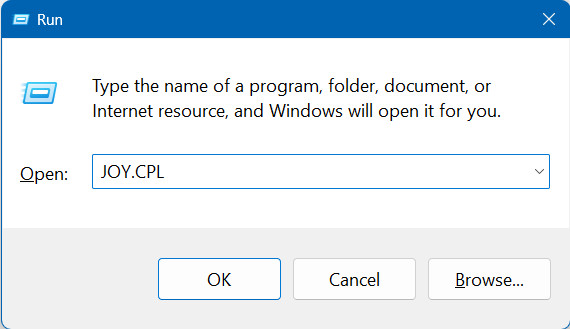
From the Windows RUN option, run JOY.CPL. This tool will show the 2 ports on the interface allowing you to see how the controllers are responding.
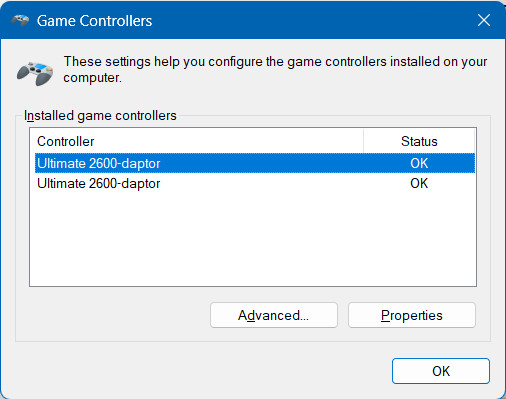
The window below should now be showing and you should see 2 ports. If you have other game controllers, disconnect them to make sure they do not interfere with this testing.
The top controller should be port #1. Connect your controller to port #1 on the interface.
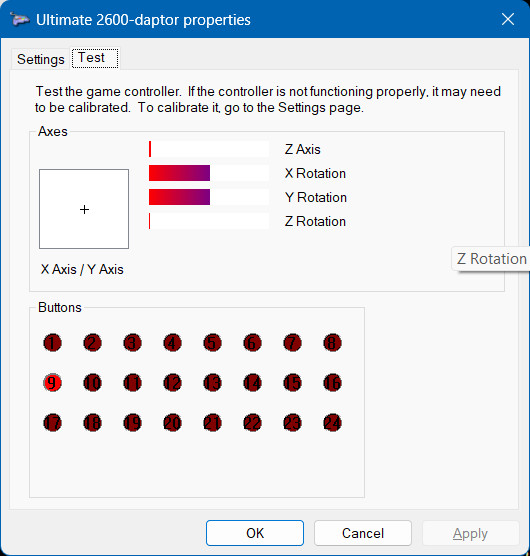
Double click on the top controller. You should now be seeing another window as shown below.
When pressing the "1" on the the Intellivision/Colecovision/NTT DATA controller, button 9 should display red as shown below. Press 2 will highlight 10, 3 will highlight 11, so on so forth.
Pressing the 2600 fire button will highlight button 1. Colecovision side buttons will highlight 1 or 2. Intellivision will highlight 1,2, or 3.
Once you confirm the PC is recognizing the controllers correctly, it is time to test a proven setup by running jzIntv available below, or setting up your own emulator.
Download jzIntv
Click Downlaod JZINTV for a ready to use jzIntv emulator with GUI interface. No setup needed.
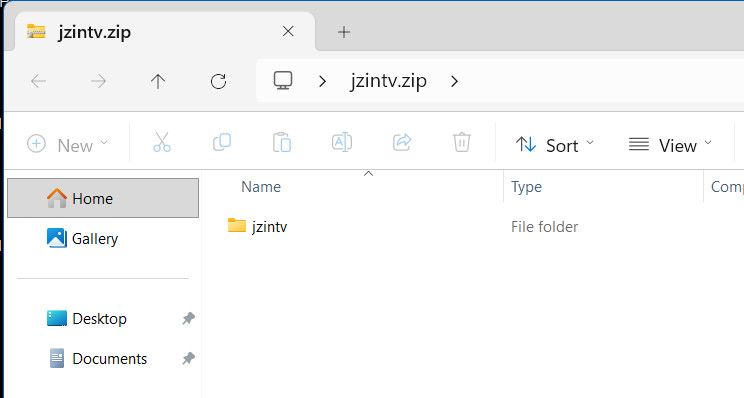
The ZIP file you download will need to be "uncompressed" to the root of your C: drive. After downloading, double click on the ZIP file.
This will open up a window similar to:
Copy the folder to the ROOT of your C: drive. The configuration files for the GUI are preset for this location
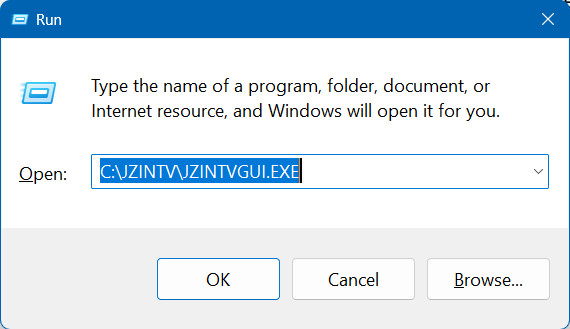
From the Windows RUN option, run: C:\jzIntv\jzIntvGUI.exe
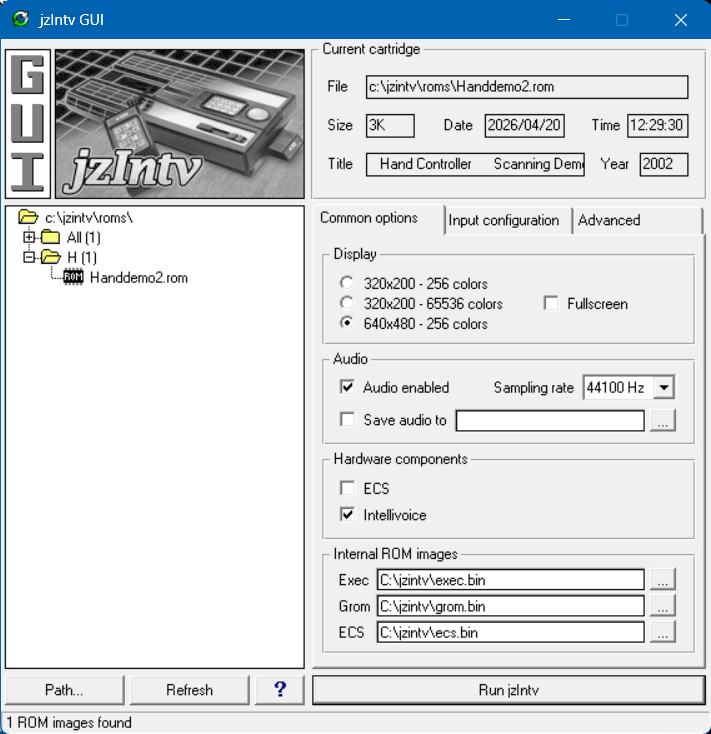
This runs the graphic front-end for the jzIntv emulator.
Expand the folder to show the HANDDEMO2.ROM
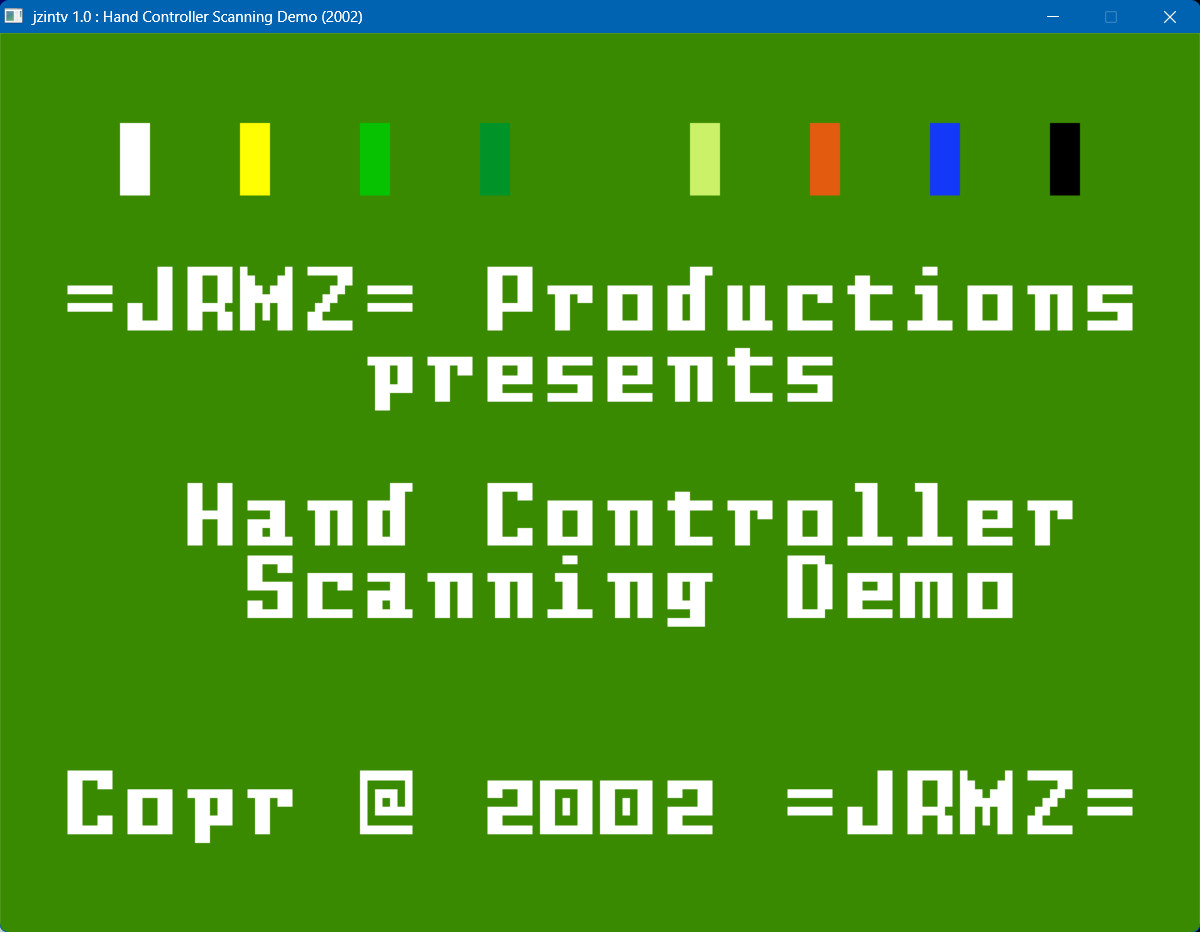
Double click on HandDemo2.rom to run the game that allows you to see if your controller is working as expected.